Phone backup
Everything on your phone. Not just the photos.
Photos and videos are the obvious part. BigMind Home also keeps the contacts, the message threads, the call history and the documents — the things people only discover they have lost after the phone is already gone.
- Eight kinds of data, on iPhone and Android
- Backs up over Wi-Fi on a schedule you set
- Then offers to free up the space it no longer needs
Or sign up online — 5 GB free, no card.
What it keeps
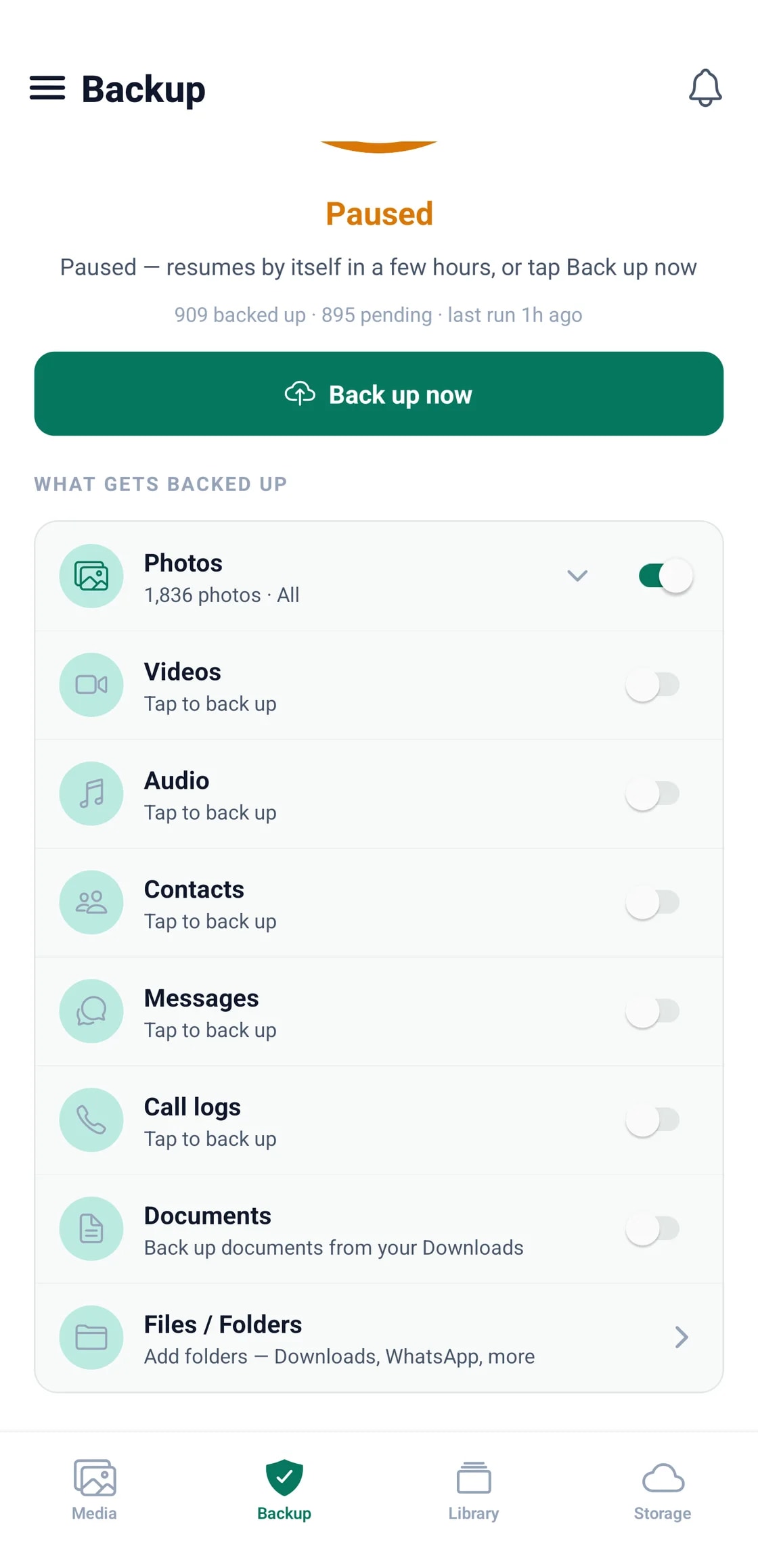
Eight kinds of data.
Each one can be switched on or off independently, so you decide what leaves the phone.
Photos
Your full camera roll, at original resolution. Choose all of it or only the albums you pick.
Videos
Including the long 4K ones that fill a phone fastest.
Audio
Voice notes, recordings and music stored on the device.
Contacts
Backed up, viewable on the web, and exportable as a vCard file.
Messages
Whole SMS threads, kept readable and exportable.
Call logs
Your call history, which almost nothing else backs up.
Documents
Picked up straight from your Downloads folder.
Any folder
Add folders by hand — WhatsApp media, a camera import, anything.
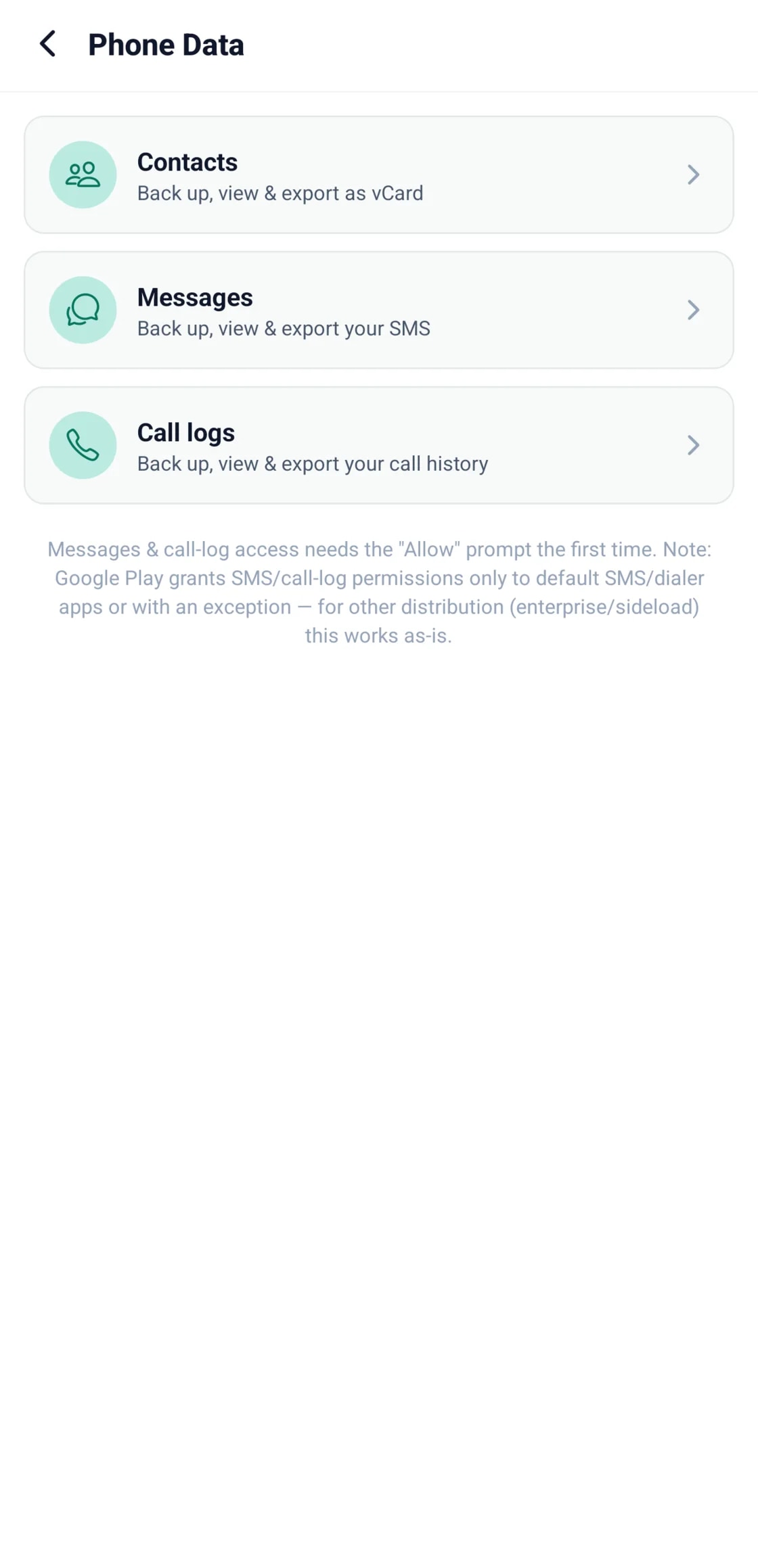
Contacts, messages and call logs — readable again.
These three live in their own section of the app. You can browse them, restore them to a new handset, or export them: contacts come out as a standard vCard file that any phone or mail client will import.
- Contacts export as vCard
- Message threads stay whole, not flattened into one list
- Call history is kept with them
The backup that makes room instead of taking it.
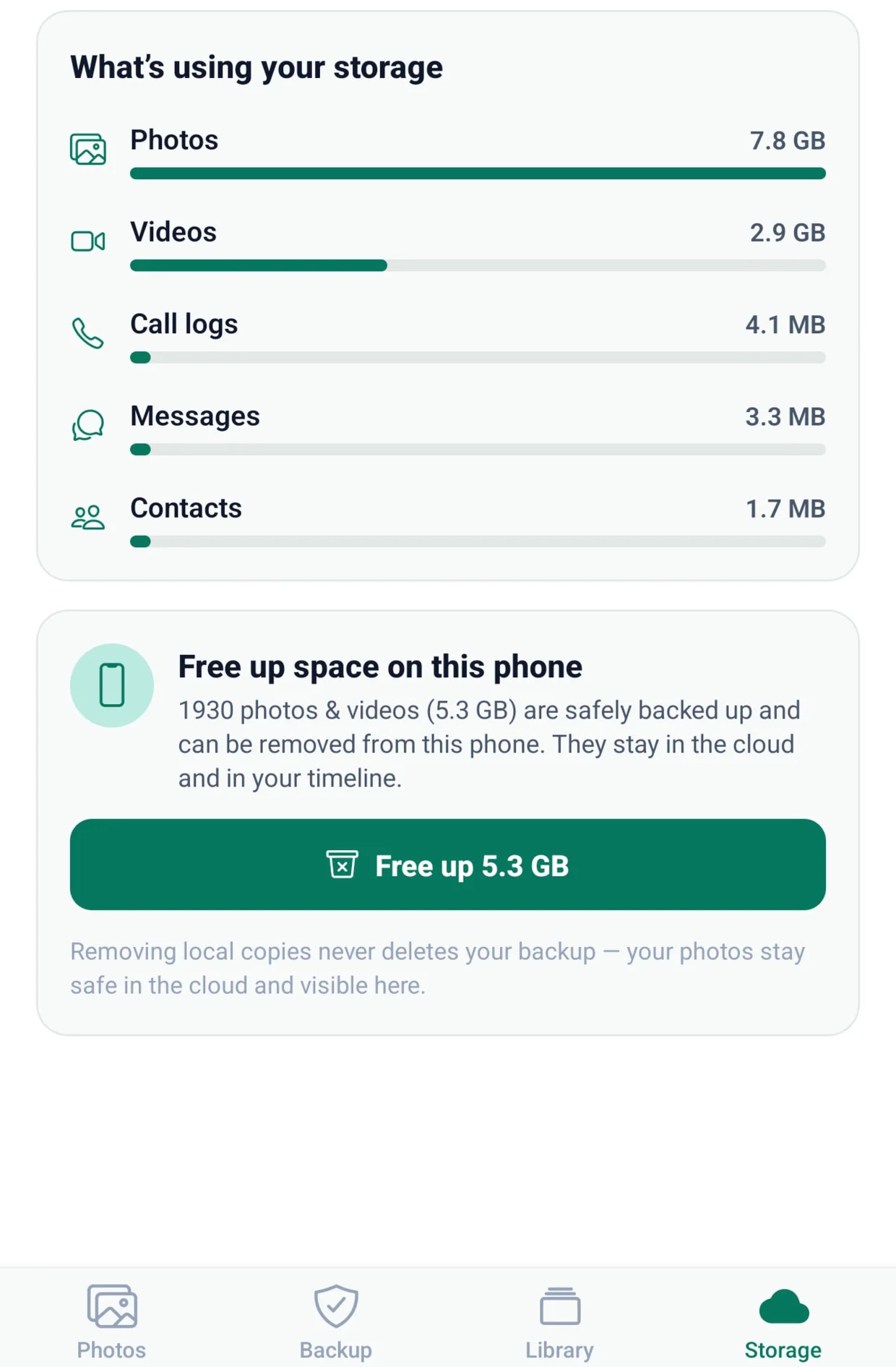
Most backup apps only ever add to your storage problem. Once BigMind has confirmed a photo or video is safely stored, it offers to remove the local copy from the handset. The file stays in your timeline and stays restorable — it just stops occupying your phone.
- Only files already confirmed safe are ever offered
- They stay visible and restorable in your timeline
- Removing a local copy never deletes the backup
Controls
It runs on your terms.
Backup that fights your data plan or your battery gets uninstalled. These are the settings that stop that happening.
Wi-Fi only, by default
Backups wait for Wi-Fi rather than spending your mobile data. You can change that in Backup rules.
On a schedule
Set when it runs. If it pauses, it resumes by itself a few hours later.
Battery aware
Background and battery settings decide how hard it works while you are not looking.
App lock
Lock the app itself behind your device passcode or biometrics.
Getting started
Four steps, once.
Install and sign in
Email code, Google or Apple. Or redeem a licence key if you have one.
Choose what to keep
Photos and videos are on by default. Add contacts, messages, call logs and folders with a tap.
Let the first run finish
The first backup is the big one, so leave it on Wi-Fi overnight. After that it keeps up on its own.
Free up the handset
Once files are confirmed safe, the app offers to remove the local copies and give you the space back.
Your phone, safe by tomorrow morning.
Install it tonight, leave it on Wi-Fi, and the hard part is already done.